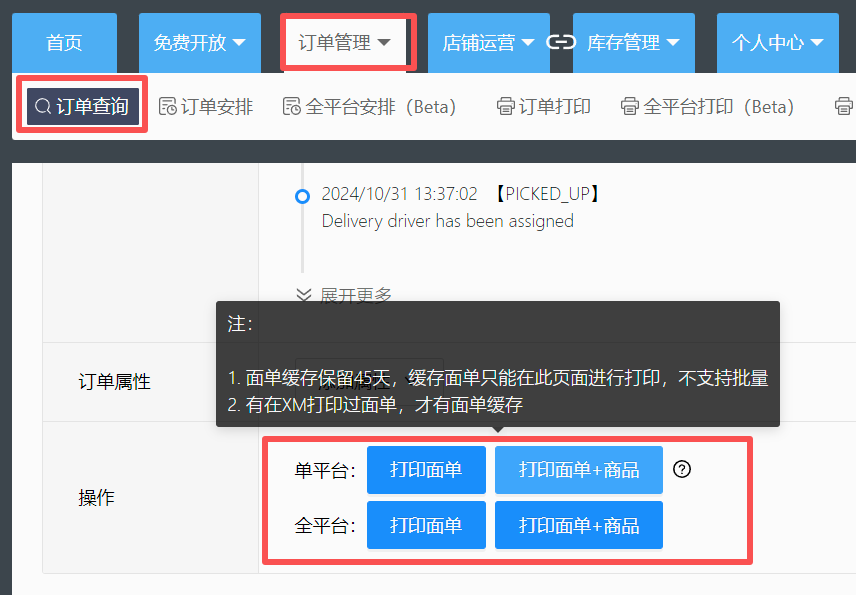
There are two methods for printing waybill caches:
- XM automatically caches waybills in the cloud, retaining them for 45 days. Orders printed via XM are automatically cached. Print entry: On the Order Management - Order Query page, search by order number.
)
- When printing orders, manually download the waybill to your local computer. The following is a tutorial on manually downloading and caching waybills.
I. Downloading Express Waybills Consists of Two Parts
Part 1: Download the original PDF of the express waybill
Part 2: Download the index file, used to locate which position in the original PDF corresponds to the order you want to print.
II. Download the Original PDF of the Express Waybill
- Hover over the download icon and click the [Download Express Waybill PDF Original] button to enter the printer preview page.
)
- Wait for the print preview page to load completely, switch the target printer to "Save as PDF," then click the Save button to download it to your local computer (Do not modify the downloaded file name).
)
)
III. Download the Index File
Hover over the download icon and click [Download PDF File Index] (Do not modify the downloaded file name).
)
)
IV. How to Find and Print the Desired Order
- Use the print date (for instructions on how to find the print date, click here) to locate the downloaded index file, then extract the index file.
)
- Search for the order number within the extracted index file. Open the TXT Notepad file to find the Page Number (Page) of that order in the original PDF.
)
)
- Open the original express waybill PDF and click the Print button. Enter the page number found in the index file above: for example, if you searched for Page 11 above, then click the Print button.
)
)


Comments
0 commentsNo comments yet — be the first to speak
If this piece sparked a thought, leave a comment and share your take.