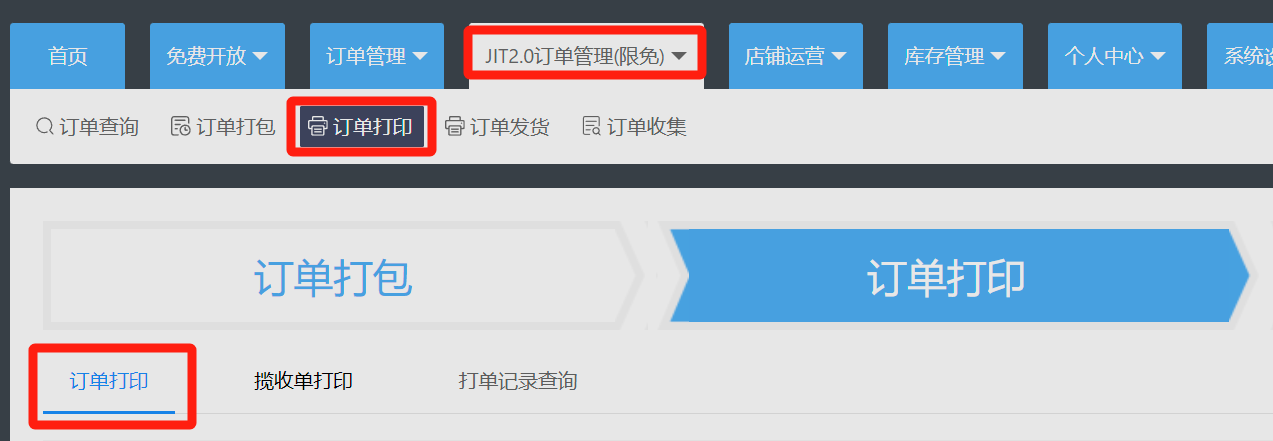
I. Order Printing
- In JIT2.0 Order Management, go to Order Printing, select the orders, and click the [Print Shipping Label] button.
)
)
- After entering the Print Shipping Label page, you can print content that includes product images, which facilitates picking.
)
- The [Print Product Barcodes] option in the bottom-right corner of this page allows you to use a single size of thermal paper to print shipping labels and product barcodes sequentially in one batch.
)
II. Order Sorting (Key Point)
On the Print Shipping Label page, the printing configuration panel on the right provides four sorting options:
- Time Sort: Sorts by order placement time.
- Quantity Sort: Sorts by the total quantity of items per order.
- Product Sort: Comprehensively sorts by product model number (Recommended).
- SKU Quantity Sort: Sorts by the attributes of product types in the order.
It is recommended to select [Product Sort]. Using this sort before printing orders can significantly improve the speed of picking and packing.
)
If you found this helpful, please give it a like.

Comments
0 commentsNo comments yet — be the first to speak
If this piece sparked a thought, leave a comment and share your take.