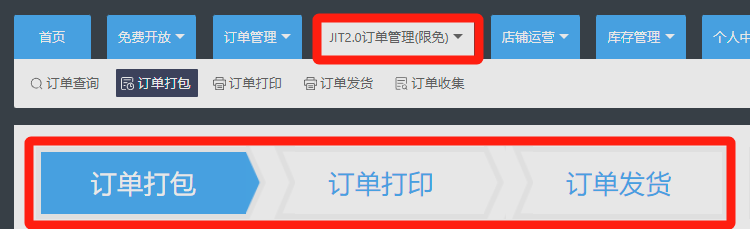
I. Choice JIT Order Processing Workflow
)
Order Packing >> Order Printing >> Order Shipping
Step 1: Order Packing
- Manual Operation: Select multiple orders to be packed, then click the [Batch Pack] button.
)
- Automatic Operation: Click the [Auto-Pack Settings] button and enable the feature.
)
)
Step 2: Order Printing The status of packed orders is [To Be Shipped], and the status of shipped orders is [To Be Received].
Orders in both statuses can be printed; by default, orders with the [To Be Shipped] status are selected.
For specific printing procedures, please refer to -> Choice JIT Order Printing Tips
Step 3: Order Shipping
- Use the WeChat Mini Program on your mobile phone or the Android APP (Click here to scan and download) to scan for [Shipping].
)
)
- Go to the JIT 2.0 Order Management -- Order Shipping page, select orders, and perform batch shipping.
)
II. Usage Details
- In the top-left corner of the operation bar, click the [Search More Content] button to search/filter all orders. This includes searches by order number, logistics number, product title, product ID, seller SKU, product attributes, etc.
)
)
- On the Order Packing / Order Printing / Order Shipping pages, you can print and export stocking lists. Please select the required orders before performing these operations.
)
Comments
0 commentsNo comments yet — be the first to speak
If this piece sparked a thought, leave a comment and share your take.